Route Graph Editor
The Route Graph Editor provides a visual representation of the routes in an X3D scene. It displays the nodes and the connections between them, making it easier to understand and edit the event flow of a scene.
The Route Graph Editor is available in the Footer of Sunrize.
Overview
Each node in the graph represents an X3D node. Connections between nodes represent the ROUTE statements that connect their fields.
The graph can be freely arranged to make the connections easier to follow. Changes made to the graph are applied directly to the X3D scene.
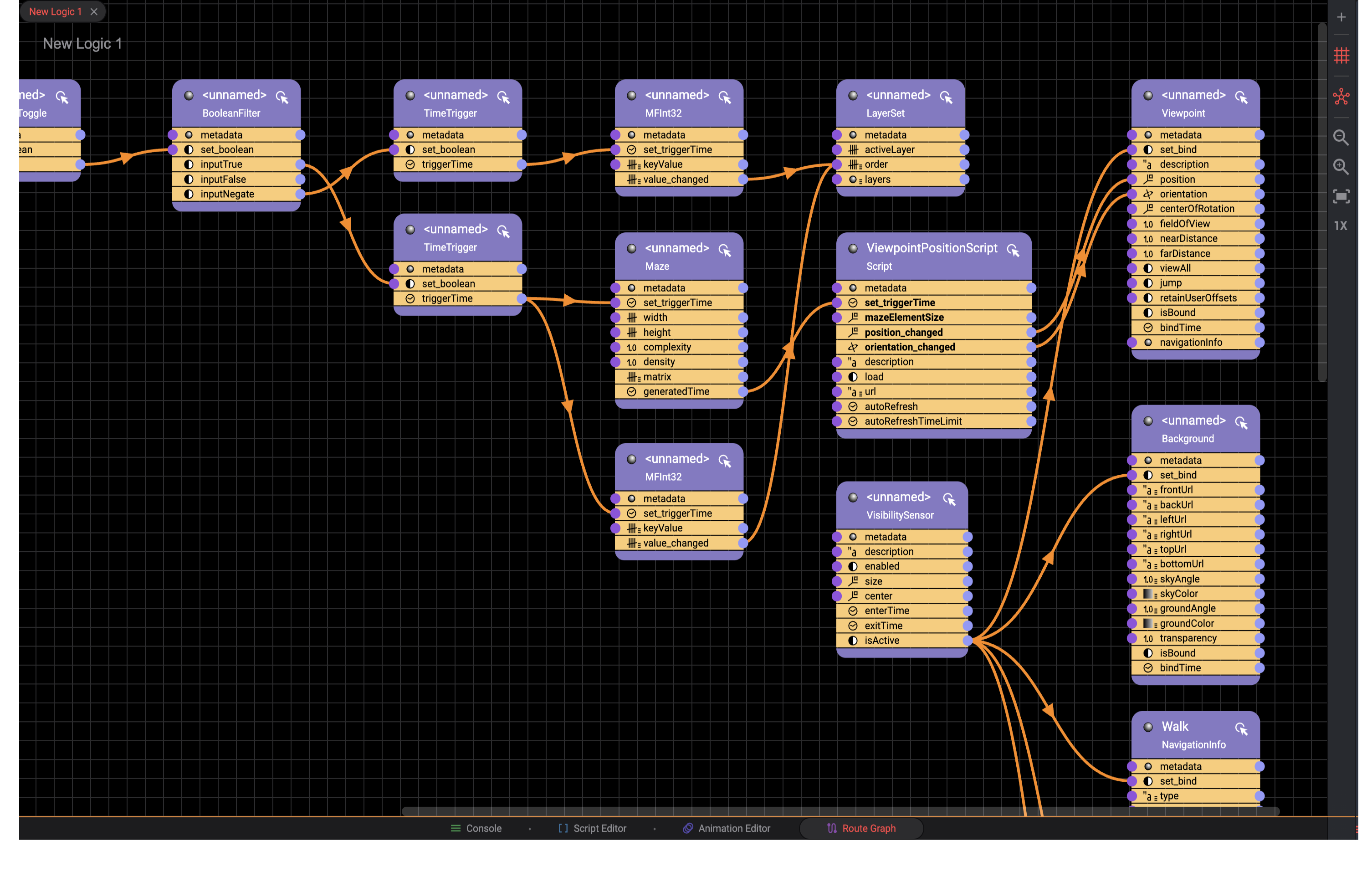
Route Graph example in Sunrize
Moving Nodes
Nodes can be selected and moved within the graph.
Drag a node to reposition it. Moving nodes only changes their visual position in the graph and does not modify the X3D scene.
Dragging nodes can be useful for arranging related nodes close to each other and making complex route networks easier to understand.
Inspecting Connections
The connections between nodes are displayed as lines in the graph.
Drag nodes around to follow and inspect their connections. This can be particularly useful for scenes with many interconnected nodes, where the corresponding ROUTE statements in the source code can be difficult to follow.
Adding Routes
Routes can be added directly in the Route Graph Editor with a single click.
Select the appropriate source and destination fields to create a new connection. The corresponding ROUTE is added to the X3D scene.
Removing Routes
Existing routes can be removed with a double click on the route arrow. Removing a connection from the graph also removes the corresponding ROUTE from the X3D scene.
Zooming
The graph can be zoomed in and out to navigate large route networks.
Zooming out provides an overview of all nodes and their connections, while zooming in makes it easier to work with individual nodes and routes.
Working with Large Route Networks
For complex scenes, arrange nodes so that related parts of the event network are grouped together. Use zooming to switch between an overview of the complete graph and detailed editing of individual connections.
The Route Graph Editor provides a visual alternative to editing ROUTE statements directly in the X3D source, while keeping the scene and its route definitions synchronized.